Order form#
The Order form is where you place orders on Anboto: Market and Limit orders, and every execution algo. It also shows the pre-trade analysis of your order and lets you set a trigger, a limit and reduce-only without leaving the ticket.
You can have up to 4 order forms on the page (for example one per group) to work several symbols side by side.
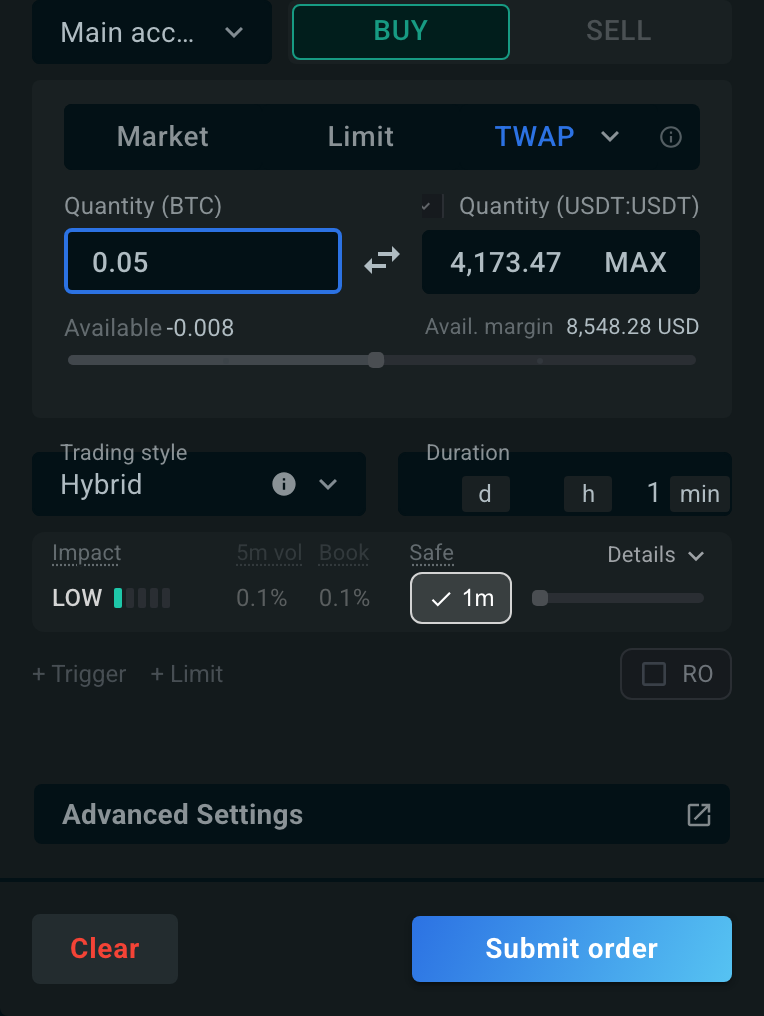
Fields#
From top to bottom:
- Symbol: chosen in the widget header, or in the Ticker bar of the same group when headers are hidden.
- Account: the exchange account or sub-account the order is sent from.
- BUY / SELL.
- Market | Limit | Algos: the Algos menu holds TWAP, VWAP, Iceberg, POV, IS and Scale. The info icon next to it describes each strategy. See Order types.
- Limit price for Limit orders (the field reads Market for Market orders).
- Quantity in the base coin and Quantity in the quote currency; type in either, the other follows. MAX fills in your available balance. The quote quantity keeps what you type and caps it at two decimals. On the quantity line, Available is a link: click it to fill the full available amount into Quantity (base), rounded down to the symbol's amount precision — the quote quantity follows as when typing. A short futures position fills its absolute size, so a single click closes the whole position.
- Available balance, and on futures the Avail. margin (see below).
- Trading style and Duration for algos that run over time, plus the fields specific to POV and Scale.
- The pre-trade tile and the conditions line.
- Advanced Settings (all orders except Market): would price, maker placement, clip size, expiration and more. See Advanced settings on each order-type page.
Clear resets the form. Submit order sends it. If you turn on Show order review (widget ⋮ menu › Order form options), the button reads Review order and opens a summary to confirm first.
The conditions line and Advanced Settings are optional; the fields above them come pre-filled with defaults where they can.
Available margin and leverage (futures)#
On futures symbols the form shows the account's Avail. margin in USD, as reported by the exchange, with a slider under it: drag it (it snaps to 25%, 50% and 75%) to size the order as a share of your available margin. Available margin is shown for Binance, Bybit, Gate.io, Hyperliquid, Kraken, Lighter, OKX and WOO X. When the exchange does not report it (for example an expired API key, or no futures key on the account), the row shows a dash.
The leverage chip (for example 10x) sits inside the label of the quote Quantity field. Click it to open a popover with:
- Margin mode (cross or isolated), read from the exchange. You set it on the exchange, not in Anboto.
- The symbol's leverage: type a value or drag the slider (1x to 100x), then click Set to change it on the exchange.
Some exchanges, Kraken for example, do not let Anboto change leverage. The popover then explains why: This exchange doesn't let Anboto change leverage., or in cross mode Cross shares one collateral pool, so leverage isn't set per trade.
Pre-trade tile#
Once a symbol is set and the quantity is above zero, a tile under Trading style and Duration (or, for POV, under the participation control) estimates the cost of the order before you send it. It replaces the separate Price impact widget, which is now optional.
For TWAP, VWAP and IS orders (IS is analysed as a TWAP over the same duration), the tile shows the impact at the chosen duration. Hover a label for its explanation:
- Impact: LOW, MEDIUM or HIGH, with a five-cell meter. It is the market impact of this order at the chosen duration.
- 5m vol: the share of the usual 5-minute traded volume the order takes at this duration.
- Book: the share of the visible order-book depth the order takes at this duration.
- Safe: the shortest duration with low impact. Click it to set that duration. If it is longer than a day, the tooltip adds: Over a day: consider a smaller size or splitting the order.
- A duration slider, anchored on the Safe duration, with dots marking the moderate-impact and safe points. Drag it to preview the impact at other durations; the duration is set when you release it. Durations round up to a fixed ladder from 1 minute to 30 days.
For POV orders, the tile is the POV pre-trade tile: it shows the impact tier and time-to-fill at the chosen participation rate, with a Safe button to apply the server's recommended rate. Dragging the participation slider previews the tier and time locally; the value is committed when you release the slider. Hover a label for its explanation:
- Impact — LOW, MEDIUM or HIGH, with a five-cell meter. The market impact tier at this participation rate.
- Time — order of magnitude for how long the order is expected to take to fill. A
≥prefix is shown for Hybrid/Passive styles or when a limit is set, to flag the figure as a lower bound. - Book — your share of the visible order-book depth.
- Safe — the server-computed safe participation rate. Click it to apply.
For Market and Limit orders the tile shows one row: Slippage, % 24h vol and Sweep.
Details expands more figures: Sweep, Slippage and % 24h vol (for duration algos), Vol short / mid, Funding 8h, OI, 24h high / low, 1m vol and 24h vol. For POV, details include the share of total traded volume, time at the 24h average, % of 24h volume and a cost estimate.
The advice refreshes every 60 seconds and follows quantity changes after a one-second pause. Nothing in the form changes until you click Safe or release the slider.
Trigger, limit and reduce only#
Under the pre-trade tile, a single conditions line lets you set a trigger price and a limit price inline, for every algo (TWAP, VWAP, POV, Iceberg, IS and Scale). Market and Limit orders do not have it. Scale has no limit price, so it only offers the trigger.
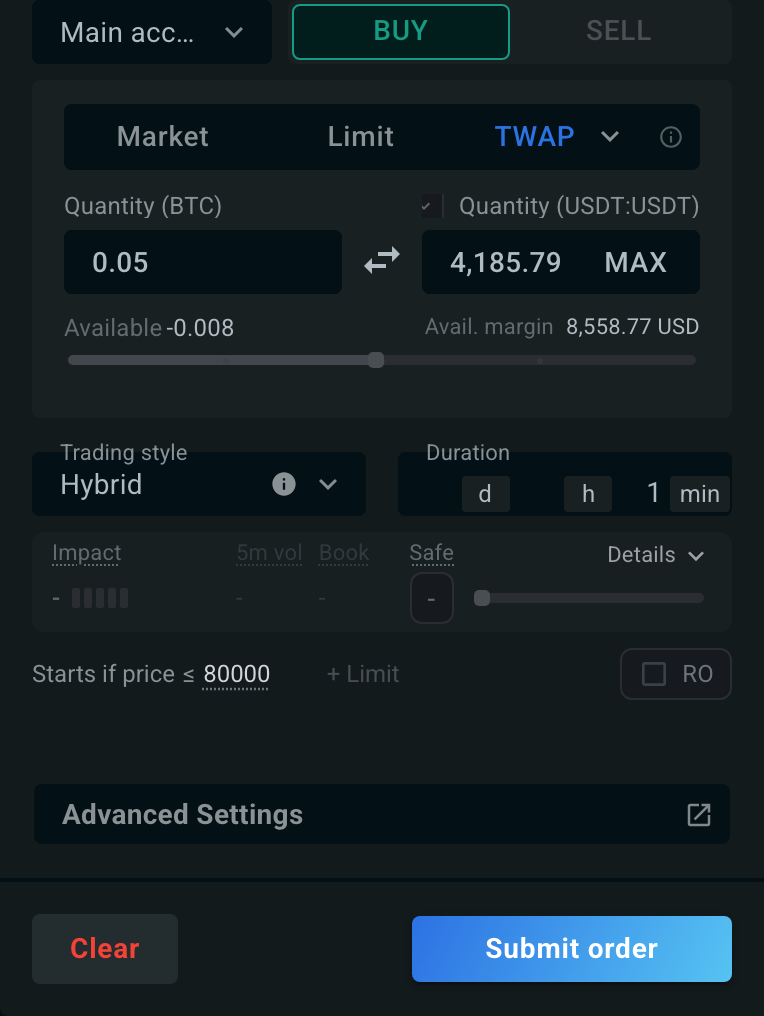
- With nothing set, the line reads + Trigger and + Limit. Hover either for a short explanation and a link to the docs.
- Click + Trigger or + Limit to type a price. The input suggests the last price. Press Enter (or click away) to confirm, Esc to cancel.
- Once set, the line reads as a sentence:
- Starts if price ≤ X or Starts if price ≥ X: the order waits and starts only once the price falls to X or below (≤), or rises to X or above (≥). While editing, click the ≥ / ≤ sign to switch direction. The default follows the side: BUY waits for a dip (≤), SELL for a rise (≥).
- Pauses if price > X (BUY) or Pauses if price < X (SELL): the worst price the order may trade at. A BUY limited at X buys only at X or below; while the price is above X, buying pauses, so the order may not complete. A SELL mirrors this.
- Click the underlined price to edit it, or × to remove it.
- On a narrow ticket the words shorten to Start and Pause.
These are the same trigger and limit fields as in Advanced Settings; the two always stay in sync. See Trigger Orders and the Glossary (Limit price, Trigger price).
On futures, the RO chip at the end of the line is Reduce only: the order can only reduce an existing position, never open or increase one. It reads Reduce only on hover or when checked. On futures the chip is there for every order type, including Market and Limit.